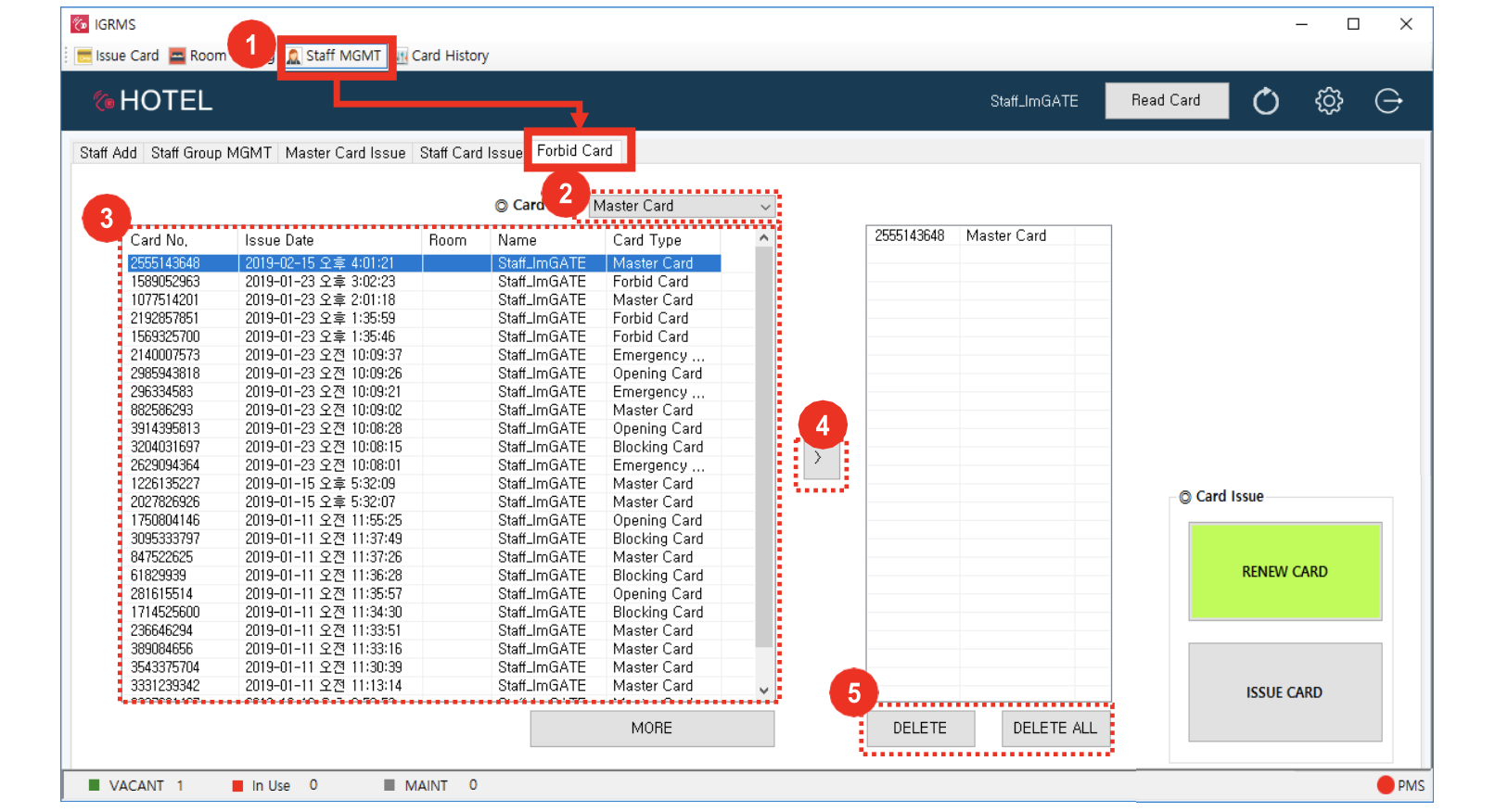
- Go to Staff MGMT → Forbid Card
- Place a new (blank) card on the encoder
- Use the dropdown list at the top of the screen to select the type of card to register as a lost card (Master Card, Staff Card, Setup Card, latest Forbid Card). Once selected, the screen will populate with all cards issued for that type.
- Select the card(s) you want to forbid from Issued Card List (Max. 16 at one time)
- Click the [ 〉] button to add to the Forbid Card list
- Select Delete (one card) or Delete All (multiple cards)
- Click Issue card on the right-hand side of the screen
- The encoder will beep, indicating that the Forbid Card action has been completed
- Additionally, the selected cards in the Delete/Delete All screen will disappear
- To further confirm the action, leave the card on the encoder and click on Read Card at the top of the screen
- A popup will display showing the Forbid Card and the previously-issued card numbers used in conjunction with the new Forbid Card
- Important! Take the Forbid Card you just issued and tap the relevant lock(s)
- That lock(s) will now be blocked from access by the card(s) you chose when issuing the Forbid Card
Additional notes:
- Renew card: If you renew the card, you can’t use previously issued Master card and Forbid card.
- To register lost card as Forbid card, you must know card number or issue date.
- Master Card: If there are no records for “Master card,” click [Renew Card] and then issue next Master Card by clicking [Issue Card] button.