
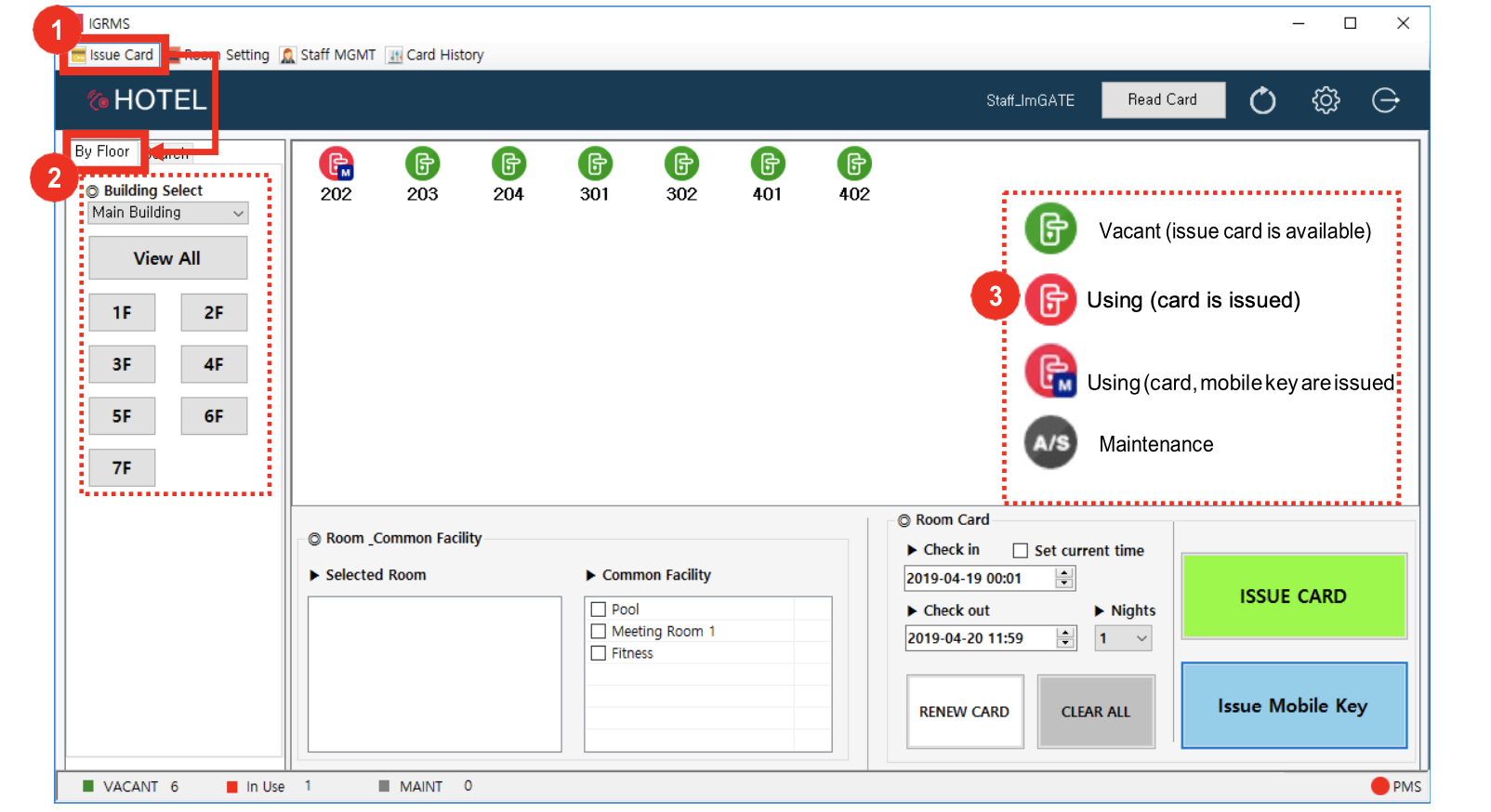
- Click Issue Card → By Floor
- Select View All or By Floor
- Rooms in red are assigned/occupied (if a Mobile Key was issued, there will also be an M)
- Rooms in green are vacant
- Rooms with A/S are out of service for Maintenance
- Right-click on a room to easily switch room status
- Important! Changing a room status to Vacant does not check out previously-issued Guest cards
To check out a Guest card:
- Place the card on the encoder
- Click Read Card at the top of the screen
- Click Check Out on the popup