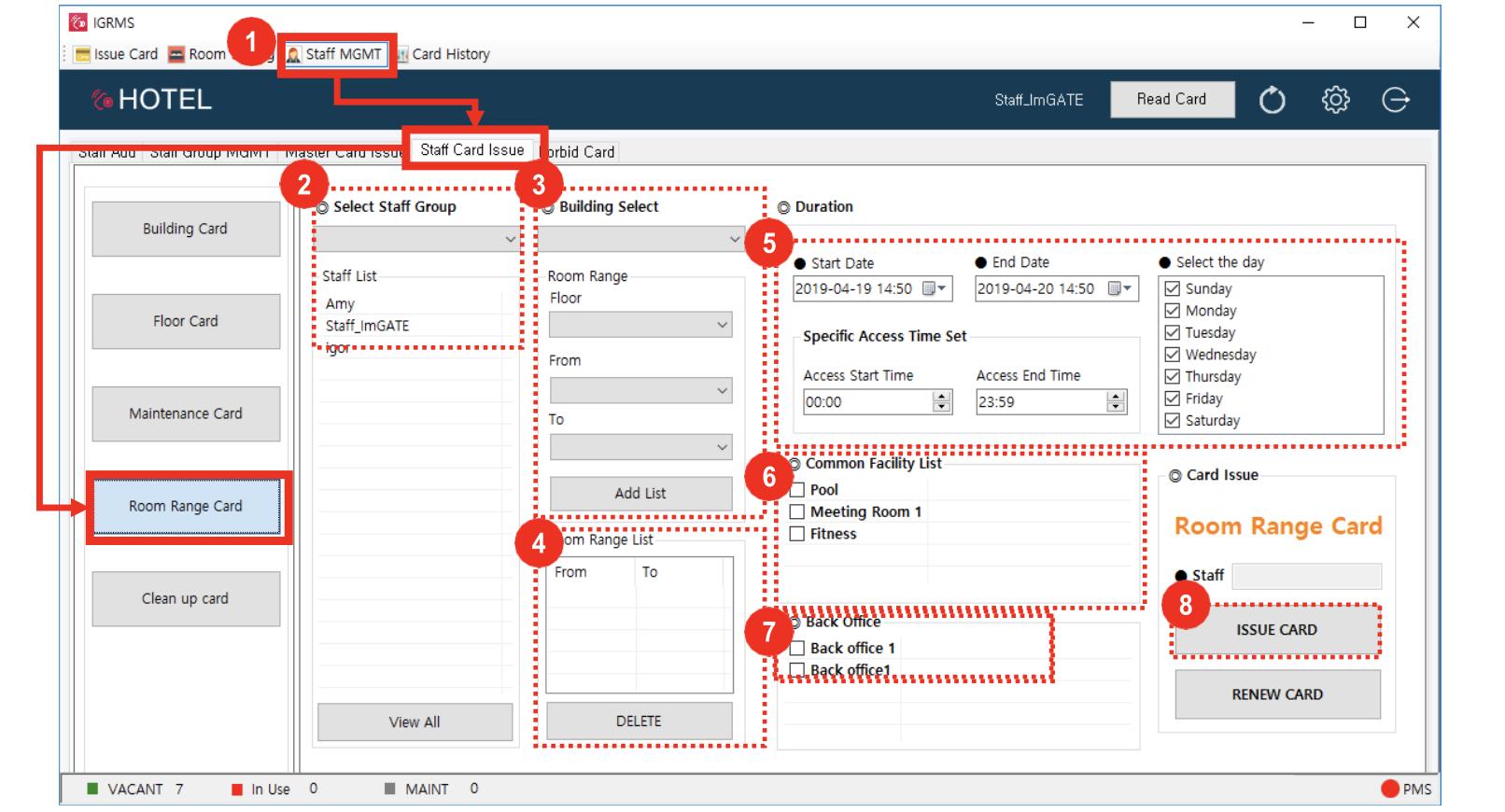
If you want Staff to have access to specific rooms on specific days/times, you can use the Room Range option.
- Go to StaffMGMT → Staff Card Issue → Room Range Card
- Place a new (blank) card on the encoder
- Select Staff Group and pick one name from the Staff list (can only issue Room Range Cards for one person at a time)
- Select Building/Floor and room set (ex: 100-105)
- Click the Add List button
- Note - if you set the room range wrong, select Room range list and click the Delete button
- Select the Duration parameters for the card (start/end date, optional specific access time, days of the week)
- Select common facilities (must have been set up in IGRMS) to authorize access
- If Back Office is set up in IGRMS, you can select it separately to authorize access
- Click the Issue card button
- The encoder will beep, indicating that the Room Range Card has been issued
- To further confirm card status, leave the card on the encoder and click Read Card at the top of the screen
- A popup will display the card information