
How to add a Room Type
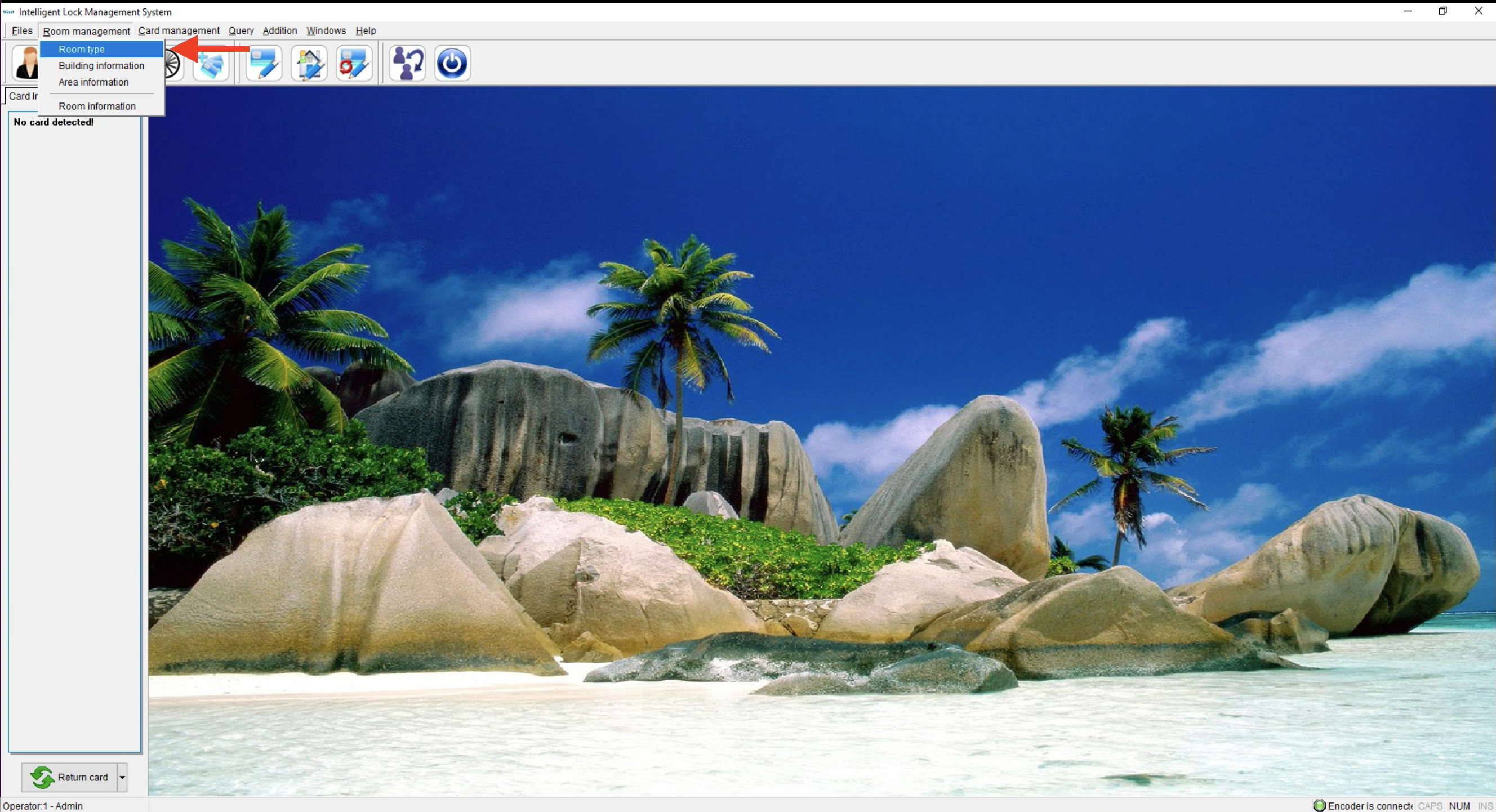
- Click on Room Management and select Room Type
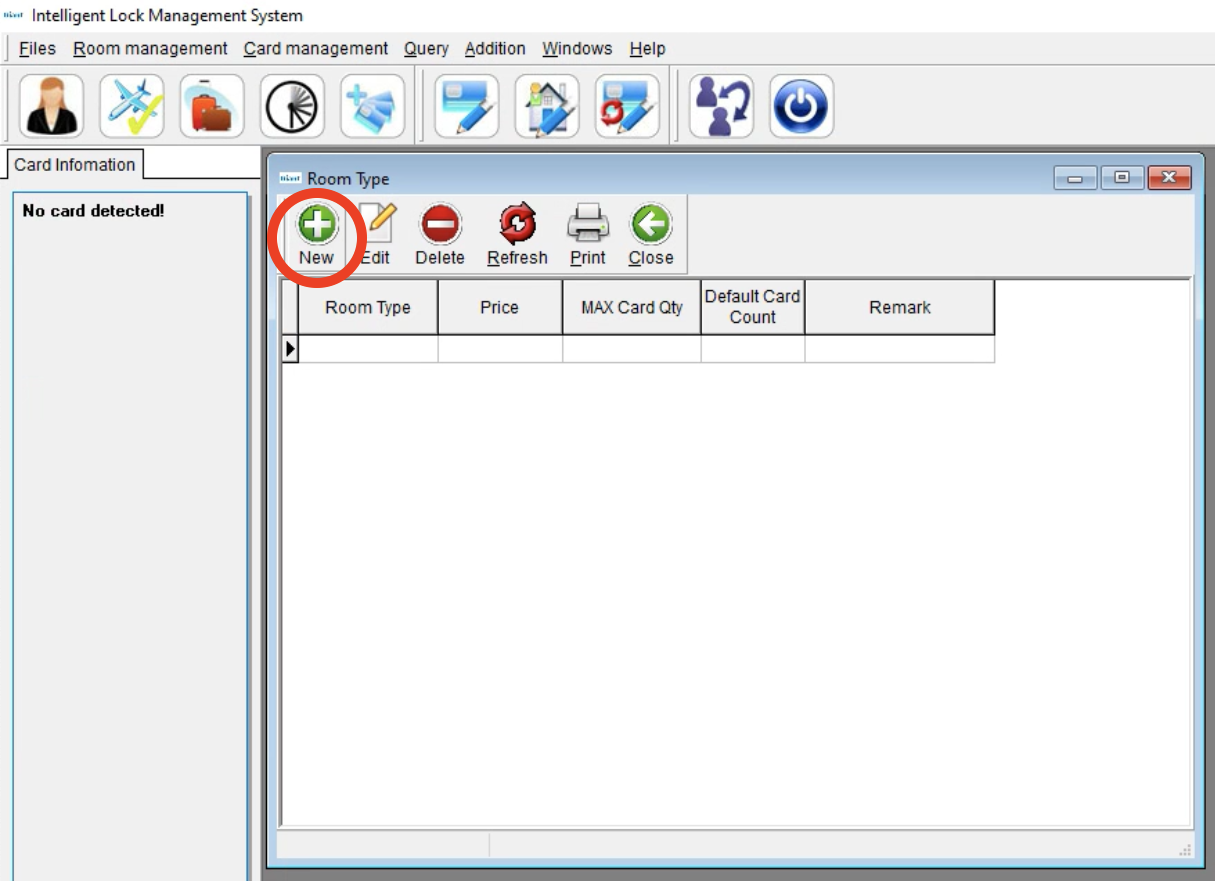
- Once the new window opens, Click New
- Add the type of room, and helpful suggestions: KING, DBQN, HSK, BOFF (King, Double Queen, Housekeeping, Back Office)
- Since the HIMS system is linked to the PMS, you can add any price you like
- MAX Card Qty, is the maximum limit of cards that can be issued for that room type when checked in
Info put into Max Qty and Price will auto-populate when adding rooms depending on the room type selected
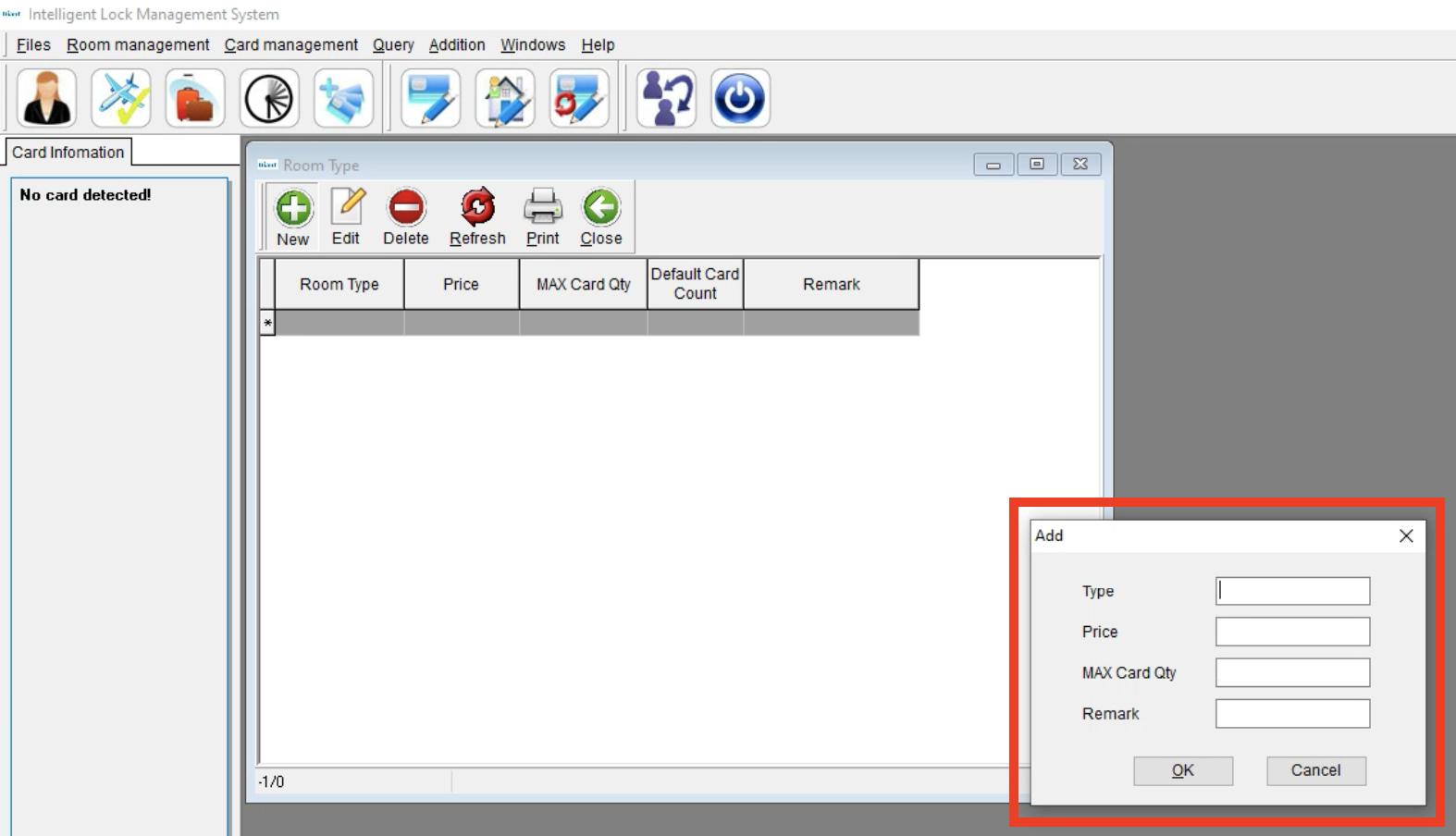
- Click OK
- Now you can add additional room types as needed
How to Edit a Room Type
- Click on Room Management and select Room Type
- Once the new window opens, choose the room type and click Edit
- From here you can edit the Type, Price, Max Card Qty, and Remark
- Click OK
How to Delete Room Type
- Click on Room Management and select Room Type
- Once the new window opens, click on the Room Type and click Delete
- If this Room Type is linked to Rooms under Room information, then the Room Type cannot be deleted as shown here in this pop-up message.
- If the Room Type is not linked to any rooms then click Yes