
Before setting up room information, Room Type and Building Information should be established.
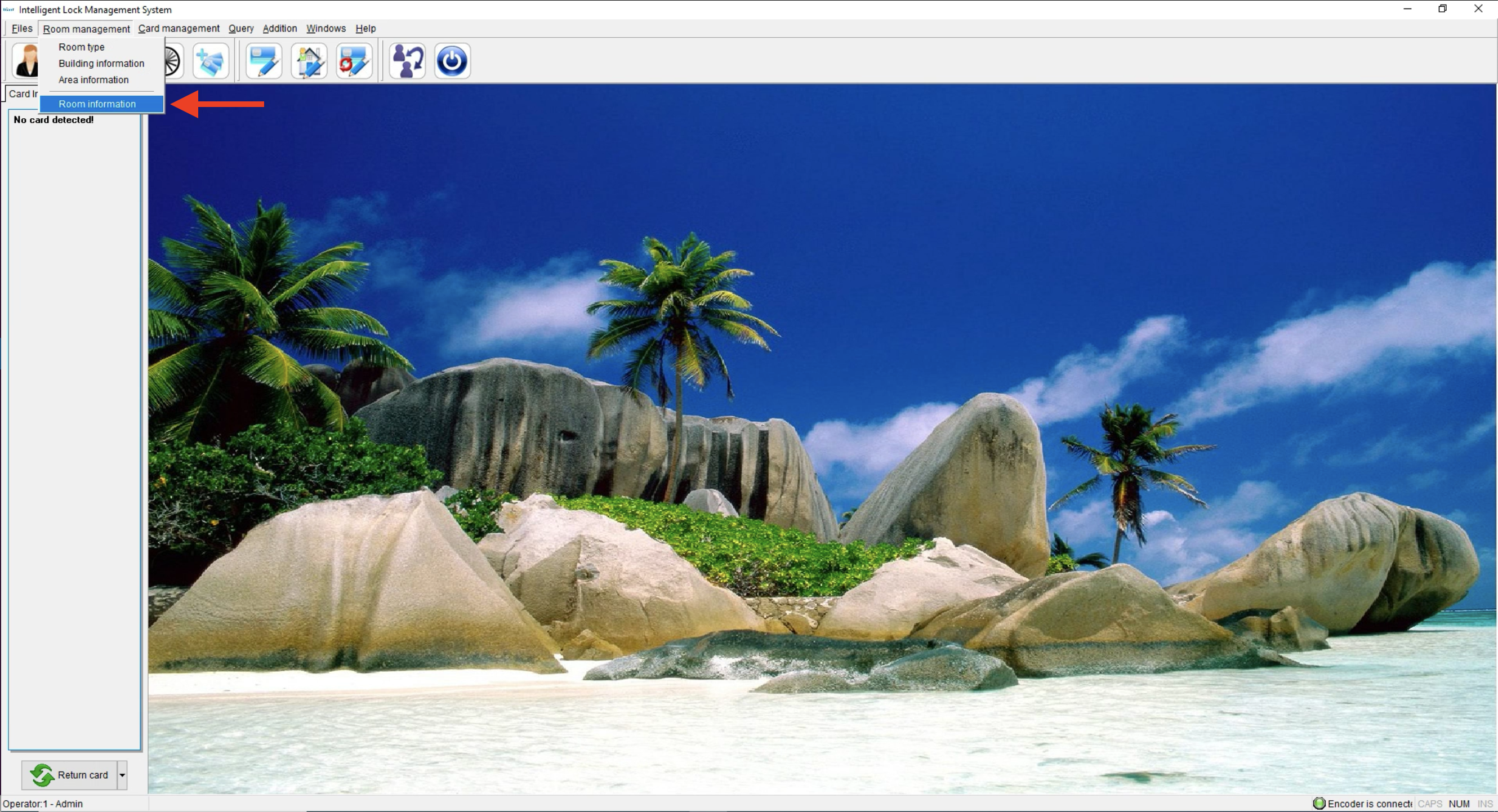
- Click on Room Management and select Room Information
Add new Guest Room
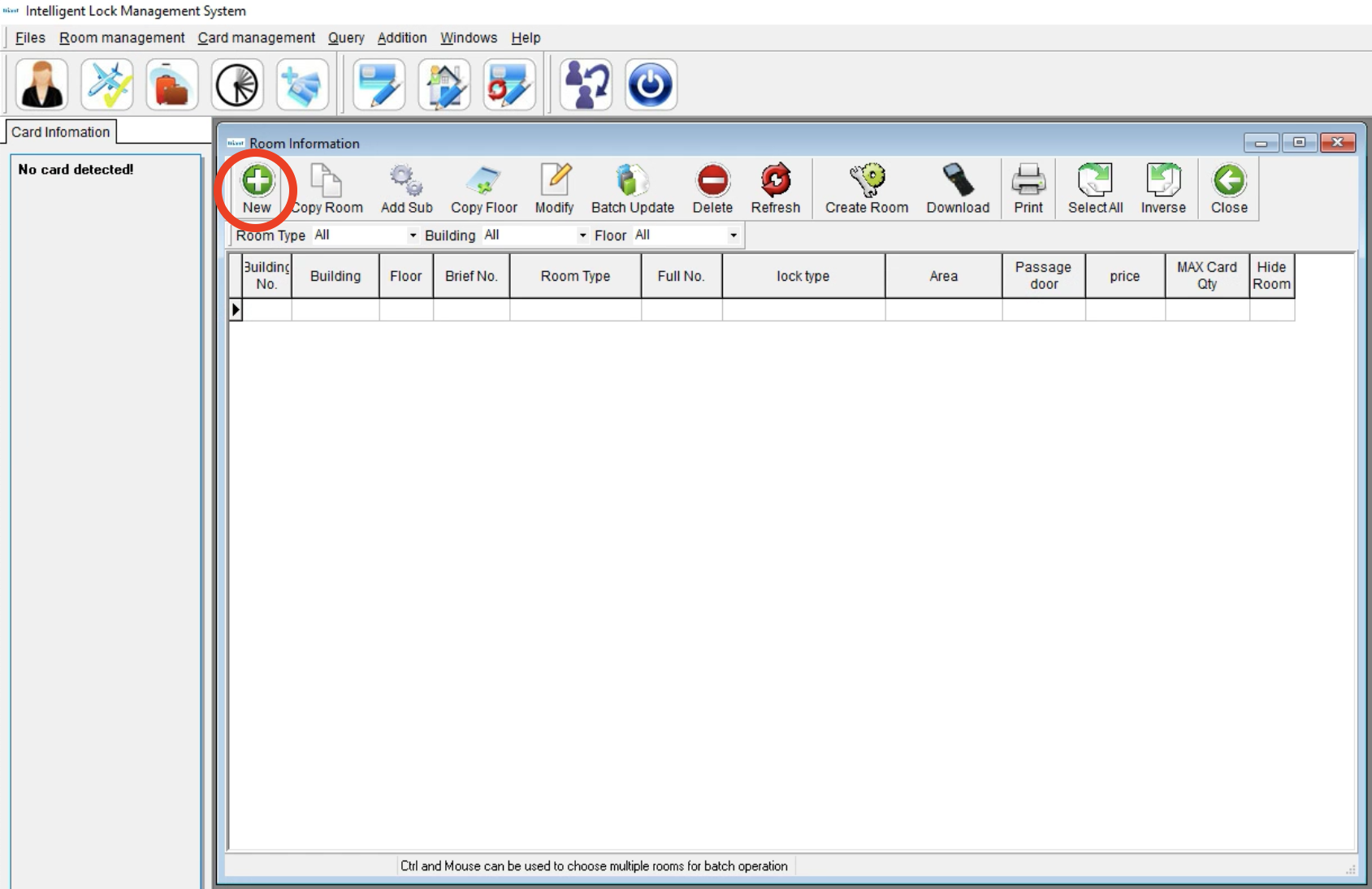
- Click “New” to open the new guest room information dialog box. Choose Building, Floor, Area, or Lock type.
- When choosing a Room Type, relative room price and Max card qty will populate automatically.
- Input the Lock Number and room Number, and tick Passage Door or Hide Room if needed.
- Note: Passage mode will make this lock stay open. Leave unchecked to keep the door locked.
- Hide Room will hide the room from selecting at check-in.
- If the Lock type has been selected as Suite Sub, the Gate number will be selectable.
- Select the relative Gate number and click “OK” to finish.
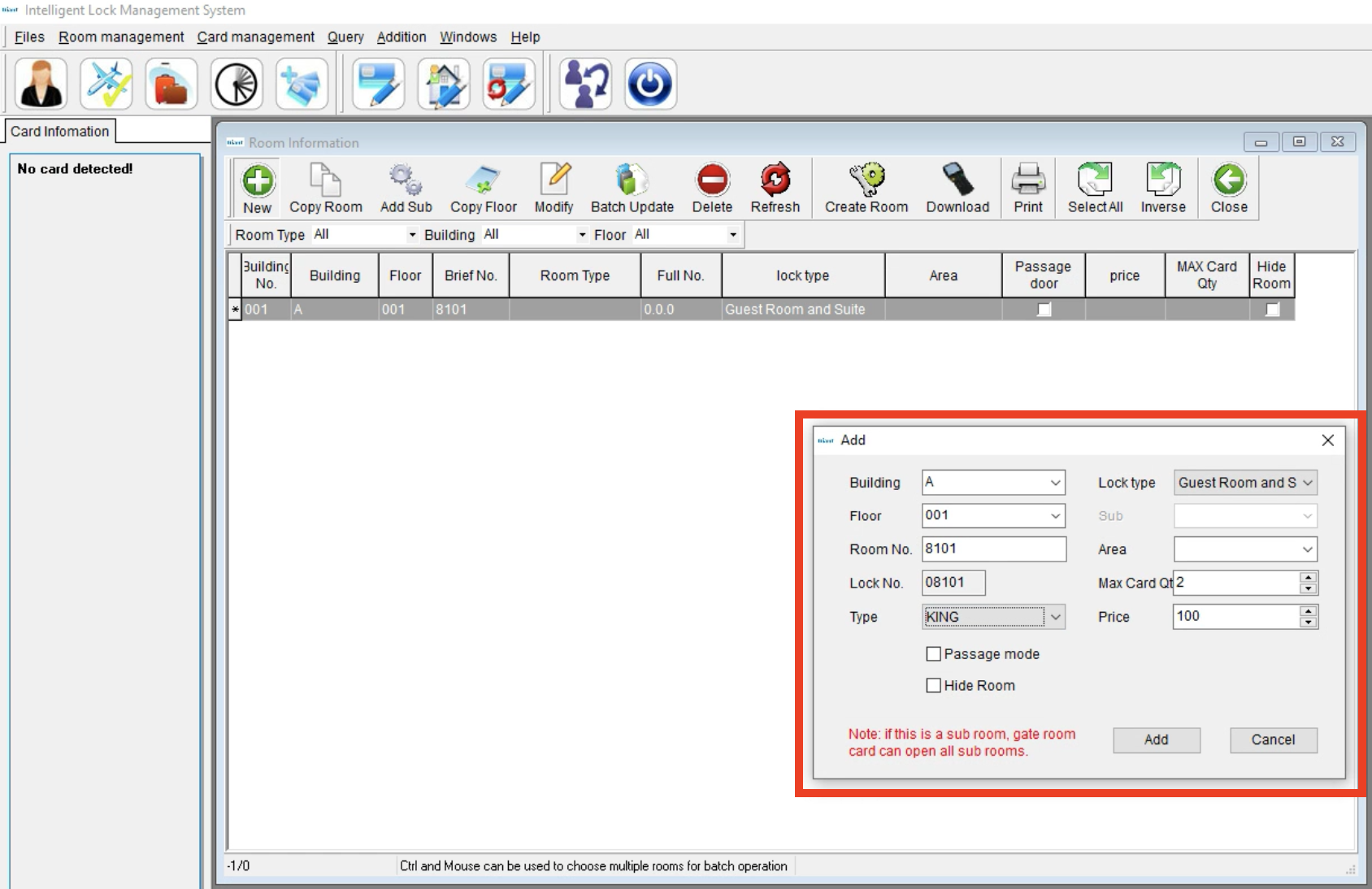
The room has now been added and can now be programmed. You can now follow the steps in the following article:
OPENKEY NXT-150 - How to program locks for RFID use.
Copy Room
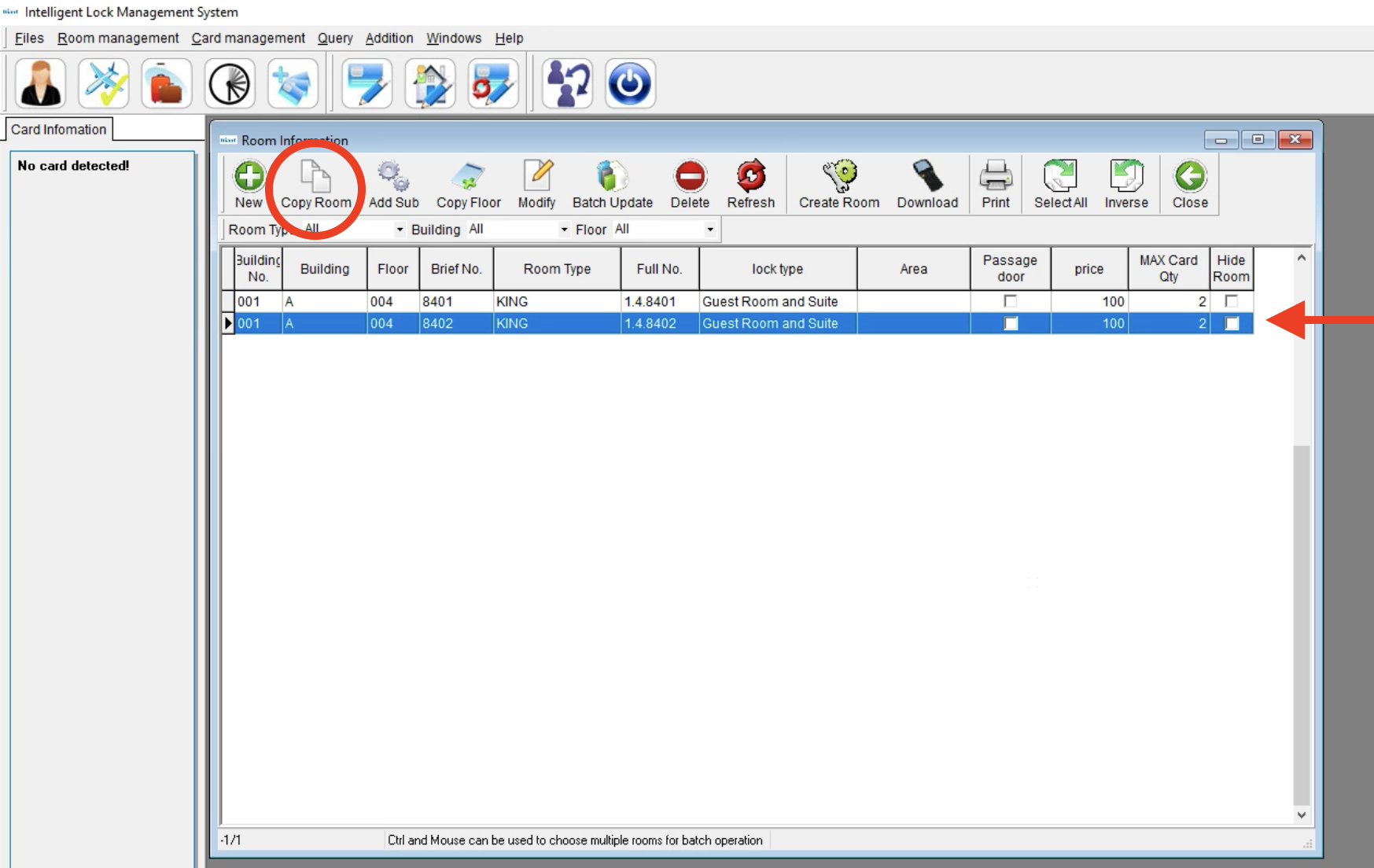
- This option helps efficiently set up a series of room data, especially on the same floor. While the room number is increased by clicking the Copy Room option, the building number and floor number remain the same. If the room number increases, it will skip it automatically.
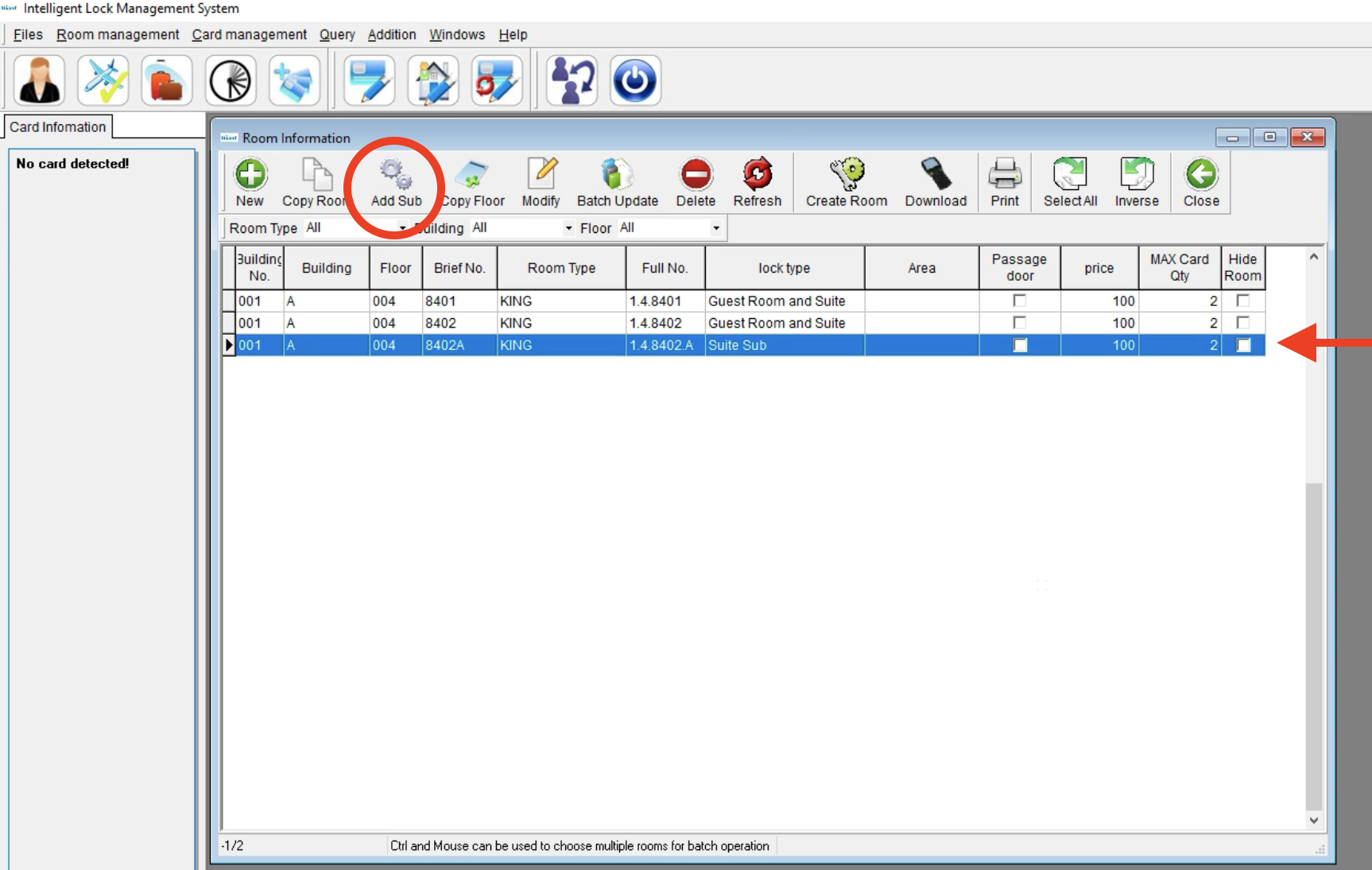
Add Sub
- Add Sub makes Sub room from letter A to Z based on the chosen room. The chosen room will become a Suite after a sub room is added.
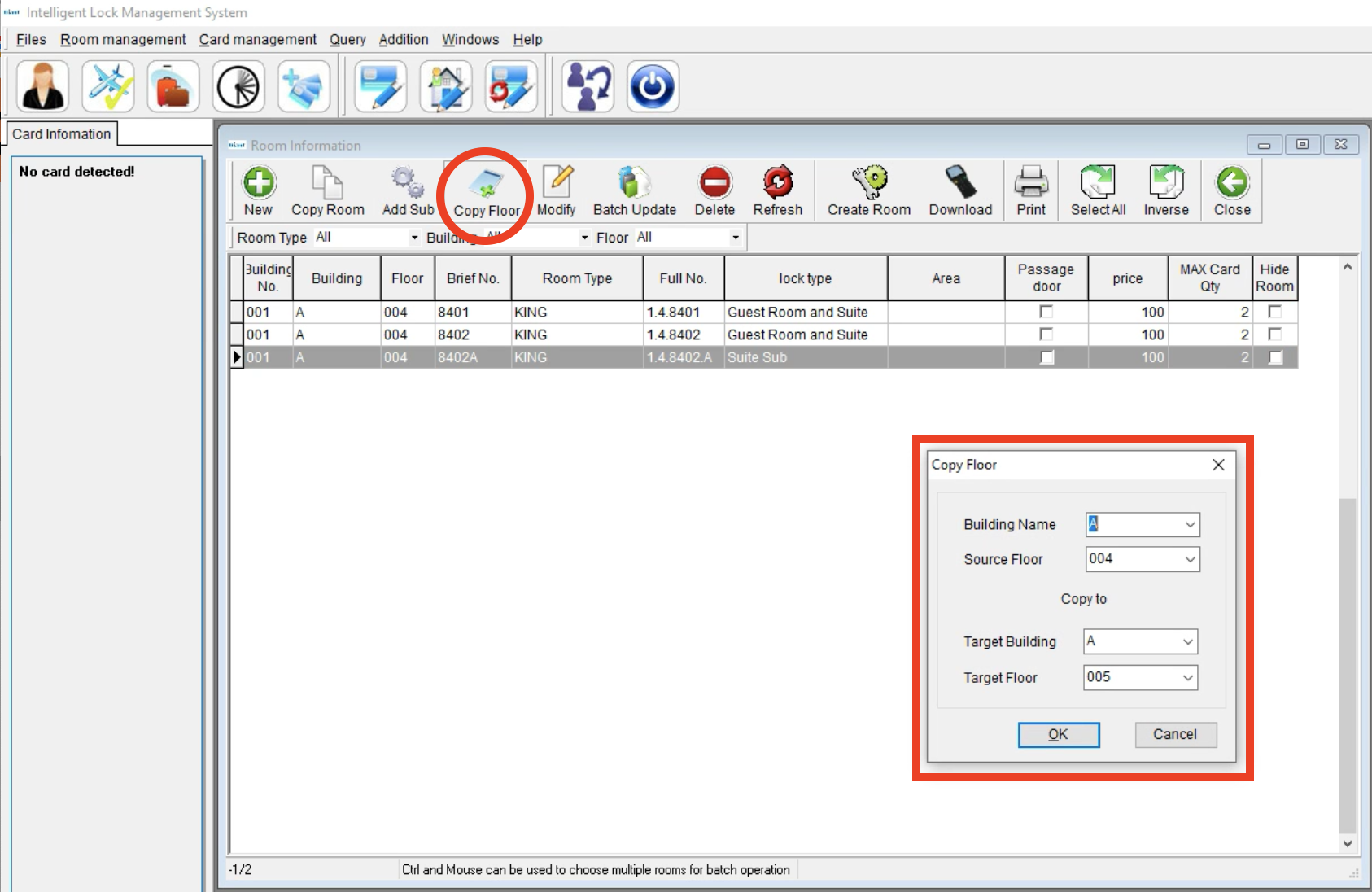
Copy Floor
- Add new similar floors quickly, including setting for suite and sub.
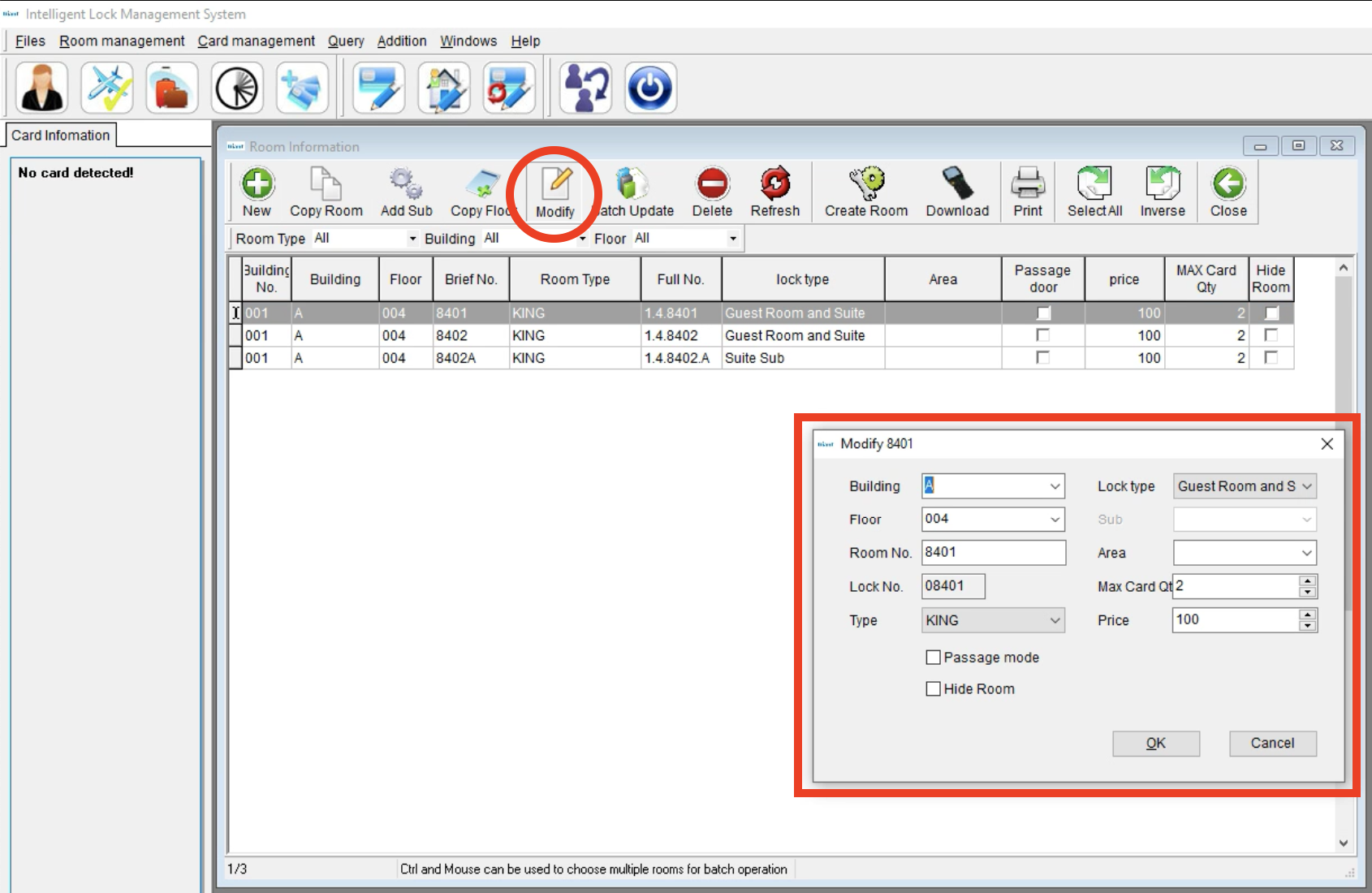
Modify
- Modify guest room information.
- Choose a room and click “Modify” (or double click a room), change room information and click “OK” to finish.
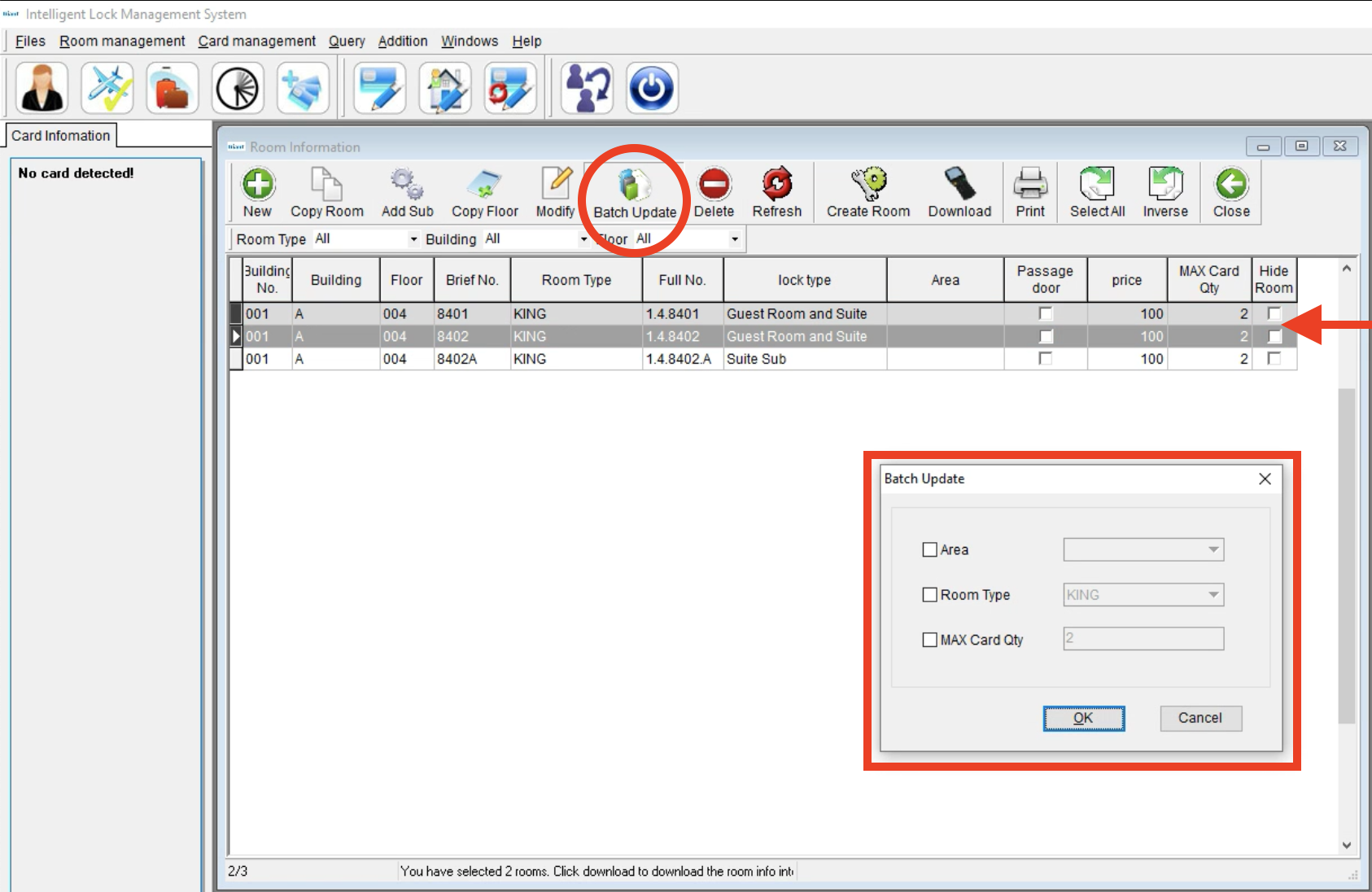
Batch Update
- Change Area, RoomType, and Max Qty for all chosen rooms at the same time.
- Choose the relative rooms, click “Batch update”, select the item needed to update, choose or input the relative information and click “OK” to finish.
Delete Guest Room
- Choose the room and click Delete, then click Yes to remove
- Create Room - Room Creation Card
Download
- Connect the handheld programming device to the computer, choose PC synchronization in the device menu, and click OK.
- Click Select All in the lock software or just the room you want to program and click Download until a “di” sounds to finish.
- Place the handheld device close to the lock sensor and input the room information into the room.
- Before programming the lock with the handheld device, please clear the room number in advance.